> ## Documentation Index
> Fetch the complete documentation index at: https://lindyai-docs-email-alerts-update.mintlify.site/llms.txt
> Use this file to discover all available pages before exploring further.
# Email Triage
> Lindy automatically sorts, labels, and prioritizes your inbox so you start every day in control
## Your Inbox, Handled
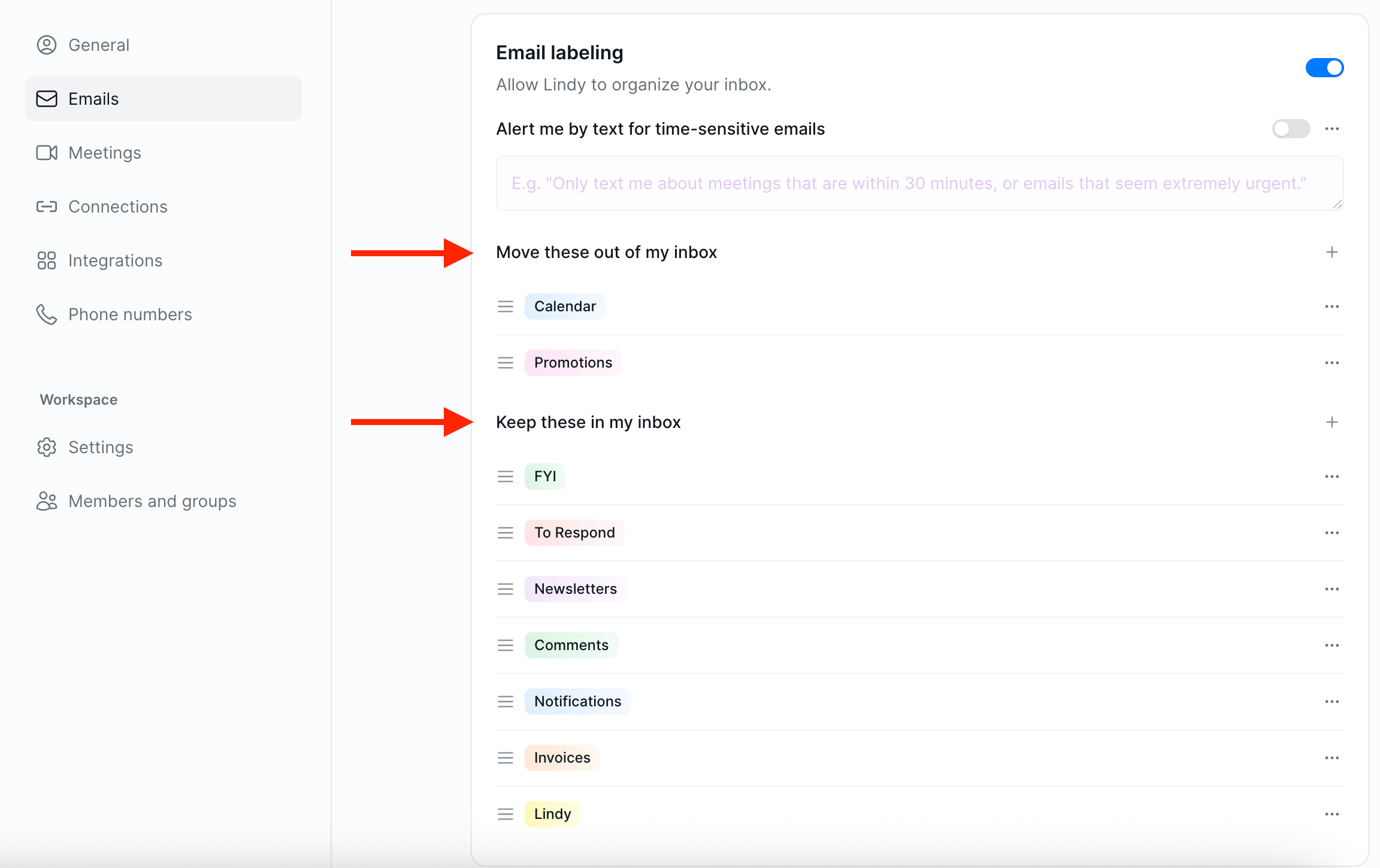 Lindy automatically labels and sorts every incoming email into categories. Important messages stay front and center. Everything else gets filed away. No rules to write, no filters to manage. The more you use Lindy, the better it gets at understanding what matters to you.
## How to Set It Up
Open Lindy, click your **workspace name** in the top-left, and choose **Settings**. In the left sidebar, click **Emails**, then scroll to **Email labeling**.
## Email Labeling
Lindy reads every incoming email and assigns it to the right category. Email labeling is **on by default**. You can adjust it anytime in your settings at [chat.lindy.ai](https://chat.lindy.ai).
### Categories
Lindy sorts your email into two groups:
**Move out of your inbox**: these get archived and labeled so they're out of sight:
* Calendar invites and updates
* Promotions and marketing emails
**Keep in your inbox**: these stay visible with a label:
| Label | What it catches |
| ----------------- | ---------------------------------------------------- |
| **To Respond** | Emails that need a reply from you |
| **FYI** | Informational, no action needed |
| **Newsletters** | Subscriptions and recurring content |
| **Comments** | Mentions, comments, and notifications from tools |
| **Notifications** | System alerts and automated messages |
| **Invoices** | Bills, receipts, and payment-related emails |
| **Lindy** | Messages from Lindy (meeting notes, briefings, etc.) |
You can customize these categories: add new ones, remove existing ones, or reorder them to match how you work.
### Adding a Label
Lindy automatically labels and sorts every incoming email into categories. Important messages stay front and center. Everything else gets filed away. No rules to write, no filters to manage. The more you use Lindy, the better it gets at understanding what matters to you.
## How to Set It Up
Open Lindy, click your **workspace name** in the top-left, and choose **Settings**. In the left sidebar, click **Emails**, then scroll to **Email labeling**.
## Email Labeling
Lindy reads every incoming email and assigns it to the right category. Email labeling is **on by default**. You can adjust it anytime in your settings at [chat.lindy.ai](https://chat.lindy.ai).
### Categories
Lindy sorts your email into two groups:
**Move out of your inbox**: these get archived and labeled so they're out of sight:
* Calendar invites and updates
* Promotions and marketing emails
**Keep in your inbox**: these stay visible with a label:
| Label | What it catches |
| ----------------- | ---------------------------------------------------- |
| **To Respond** | Emails that need a reply from you |
| **FYI** | Informational, no action needed |
| **Newsletters** | Subscriptions and recurring content |
| **Comments** | Mentions, comments, and notifications from tools |
| **Notifications** | System alerts and automated messages |
| **Invoices** | Bills, receipts, and payment-related emails |
| **Lindy** | Messages from Lindy (meeting notes, briefings, etc.) |
You can customize these categories: add new ones, remove existing ones, or reorder them to match how you work.
### Adding a Label
Navigate to the Email Labeling section in your settings at [chat.lindy.ai](https://chat.lindy.ai).
Find the group where you want your new label to live, either **Keep in your inbox** or **Move out of inbox**, and click the **+** button next to it.
Labels in **Move out of inbox** will archive matching emails automatically.
Enter a label title, then write instructions describing which emails should receive this label.
Once created, you can reorder labels at any time by dragging the hamburger icon to the left of the label.
For labels like **To Respond**, toggle on **Remove label after reply** and Lindy clears the label once you've responded to the email.
## Time-sensitive Email Alerts
Lindy can alert you when something urgent hits your inbox, so you catch it without watching your email. Turn on **Time-sensitive email alerts**, pick a **Delivery channel** for how Lindy reaches you (text message, Slack, or Lindy chat), and tell Lindy what counts as urgent.
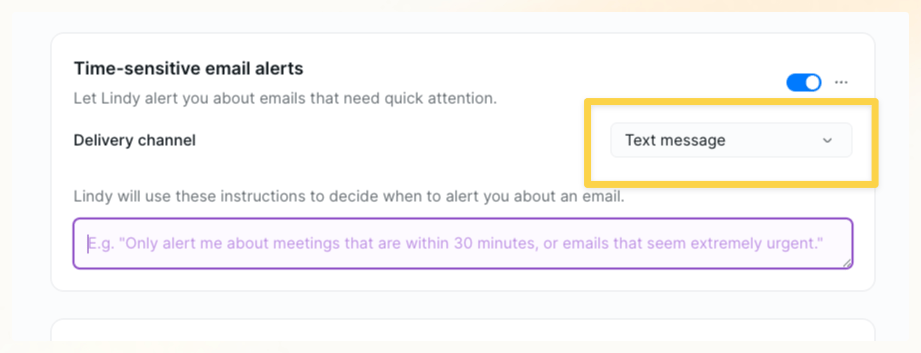 Write your instructions in plain language:
* **Time-sensitive meetings**: "Only alert me about meetings that are within 30 minutes, or emails that seem extremely urgent"
* **VIP senders**: "Alert me when I get an email from \[VIP client name]"
* **Specific threads**: "Alert me if someone replies to the proposal thread"
Choose text message as your delivery channel and this pairs well with [iMessage & SMS](/features/imessage-sms). You get alerted on your phone and can reply to Lindy right there.
## Next Steps
How Lindy drafts replies in your voice
Get email alerts and respond via text
Write your instructions in plain language:
* **Time-sensitive meetings**: "Only alert me about meetings that are within 30 minutes, or emails that seem extremely urgent"
* **VIP senders**: "Alert me when I get an email from \[VIP client name]"
* **Specific threads**: "Alert me if someone replies to the proposal thread"
Choose text message as your delivery channel and this pairs well with [iMessage & SMS](/features/imessage-sms). You get alerted on your phone and can reply to Lindy right there.
## Next Steps
How Lindy drafts replies in your voice
Get email alerts and respond via text