> ## Documentation Index
> Fetch the complete documentation index at: https://lindyai-docs-email-alerts-update.mintlify.site/llms.txt
> Use this file to discover all available pages before exploring further.
# Voice Support
> Let your agent answer support calls, consult your knowledge base, and log every interaction.
## Quick Overview
This inbound flow lets Lindy:
* **Answer** calls on a dedicated number
* **Gather** the caller's name and question in natural conversation
* **Access** pre-loaded context for fast, accurate responses
* **Respond** concisely and close the loop
* **Record** summaries to Sheets and alert your team in Slack
Start from the [inbound support template](https://chat.lindy.ai/home/?templateId=6875ad458aeebd9c66a8b3b5) and customize.
## Setting Up Your Inbound Call Bot
### Step 1: Provision a Number
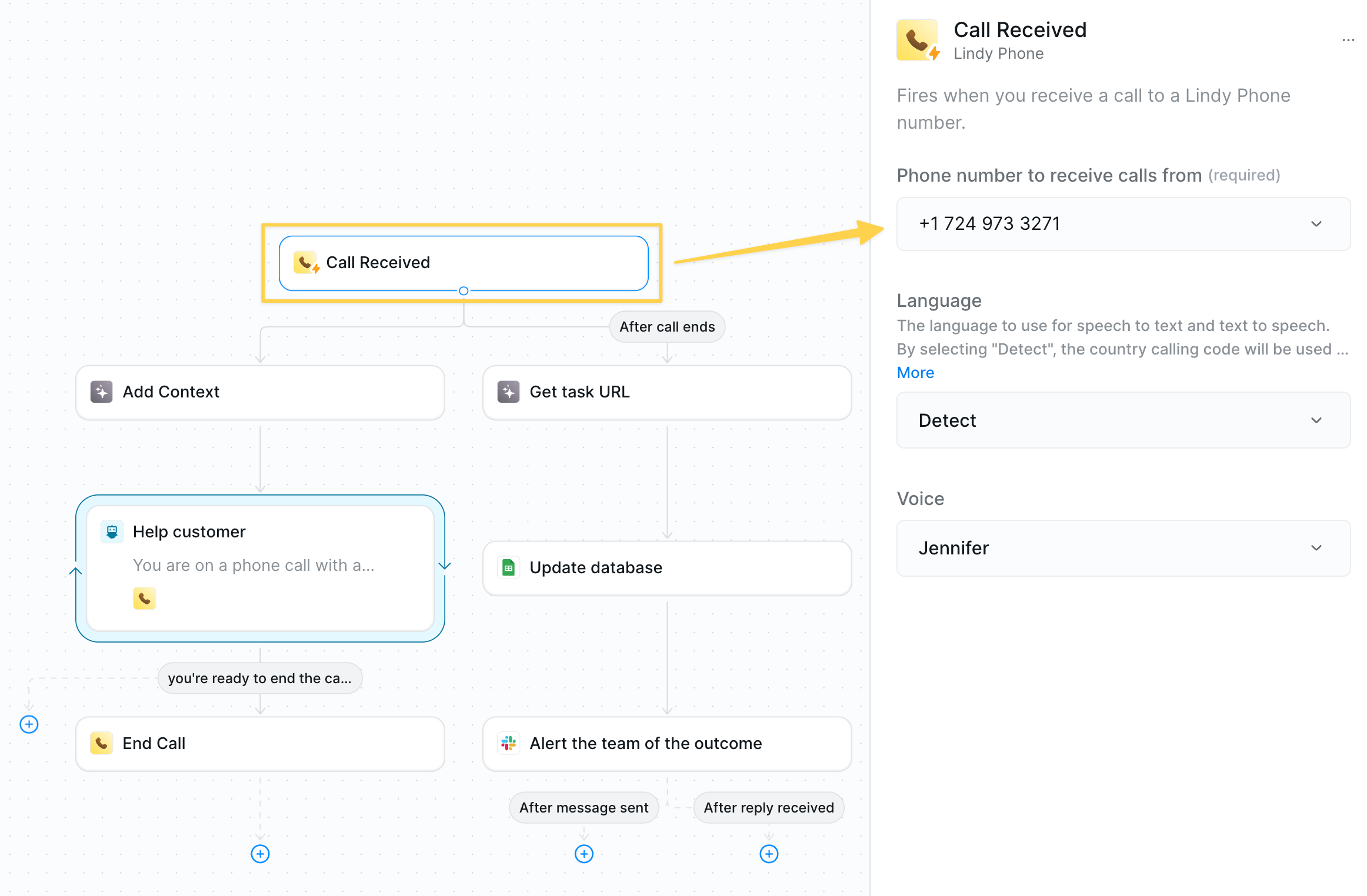 1. Click the `Call Received` trigger.
2. Purchase or select a unique Lindy Phone number.
### Step 2: Add Context for Support Knowledge
Pre-load your support information to ensure fast response times during calls.
1. Click the `Call Received` trigger.
2. Purchase or select a unique Lindy Phone number.
### Step 2: Add Context for Support Knowledge
Pre-load your support information to ensure fast response times during calls.
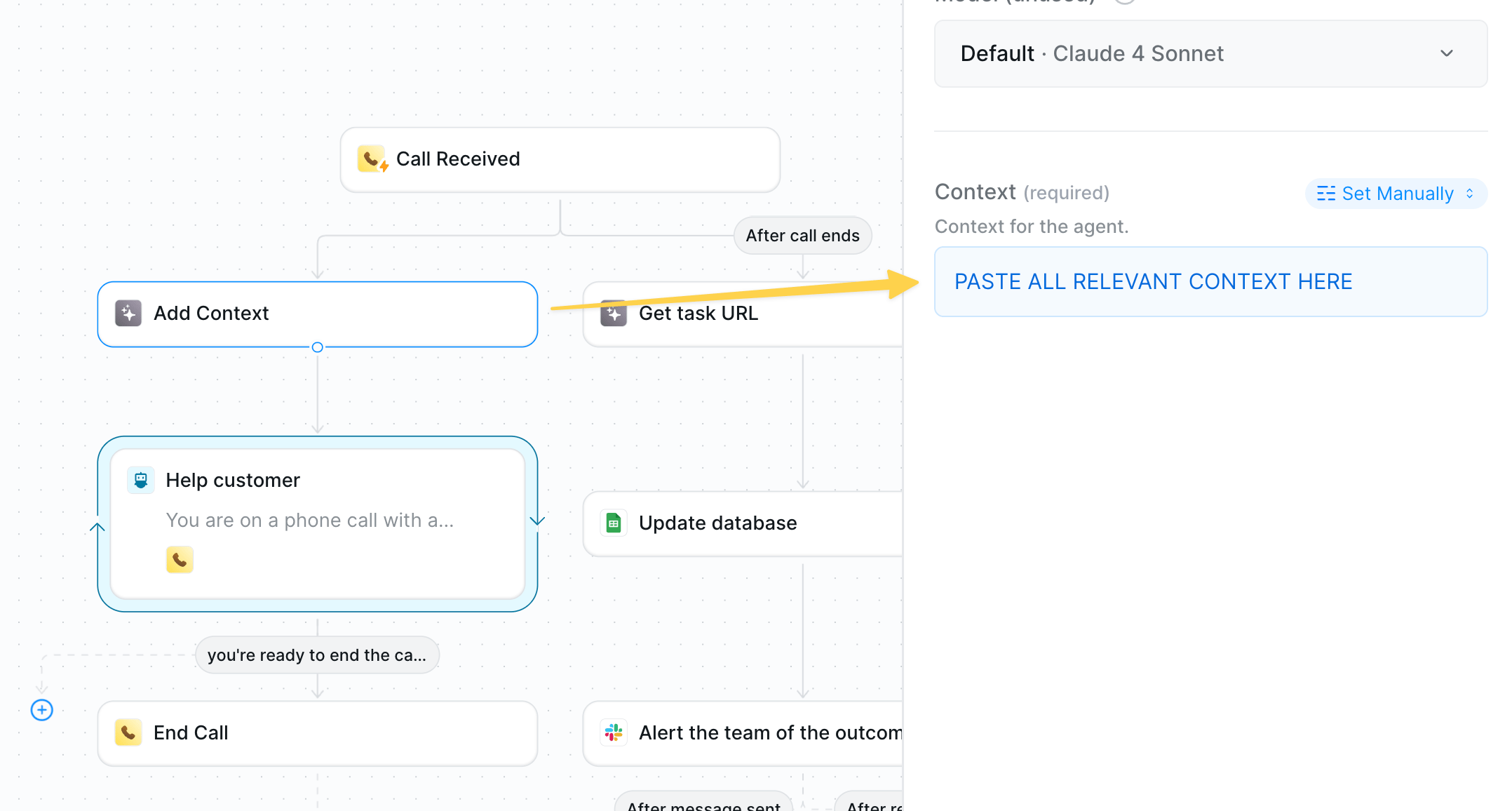 * Action: `Add Context`
* Upload lightweight company context: FAQs, key policies, common troubleshooting steps
* Keep it concise — this context stays in memory during the entire call for optimal latency
We use Add Context instead of Search Knowledge Base because even though you can perform actions during phone calls, pre-loading lightweight context helps maintain fast response times.
### Step 3: Inbound Phone Call Agent
Configure your AI agent to handle the conversation with pre-loaded context.
* Action: `Add Context`
* Upload lightweight company context: FAQs, key policies, common troubleshooting steps
* Keep it concise — this context stays in memory during the entire call for optimal latency
We use Add Context instead of Search Knowledge Base because even though you can perform actions during phone calls, pre-loading lightweight context helps maintain fast response times.
### Step 3: Inbound Phone Call Agent
Configure your AI agent to handle the conversation with pre-loaded context.
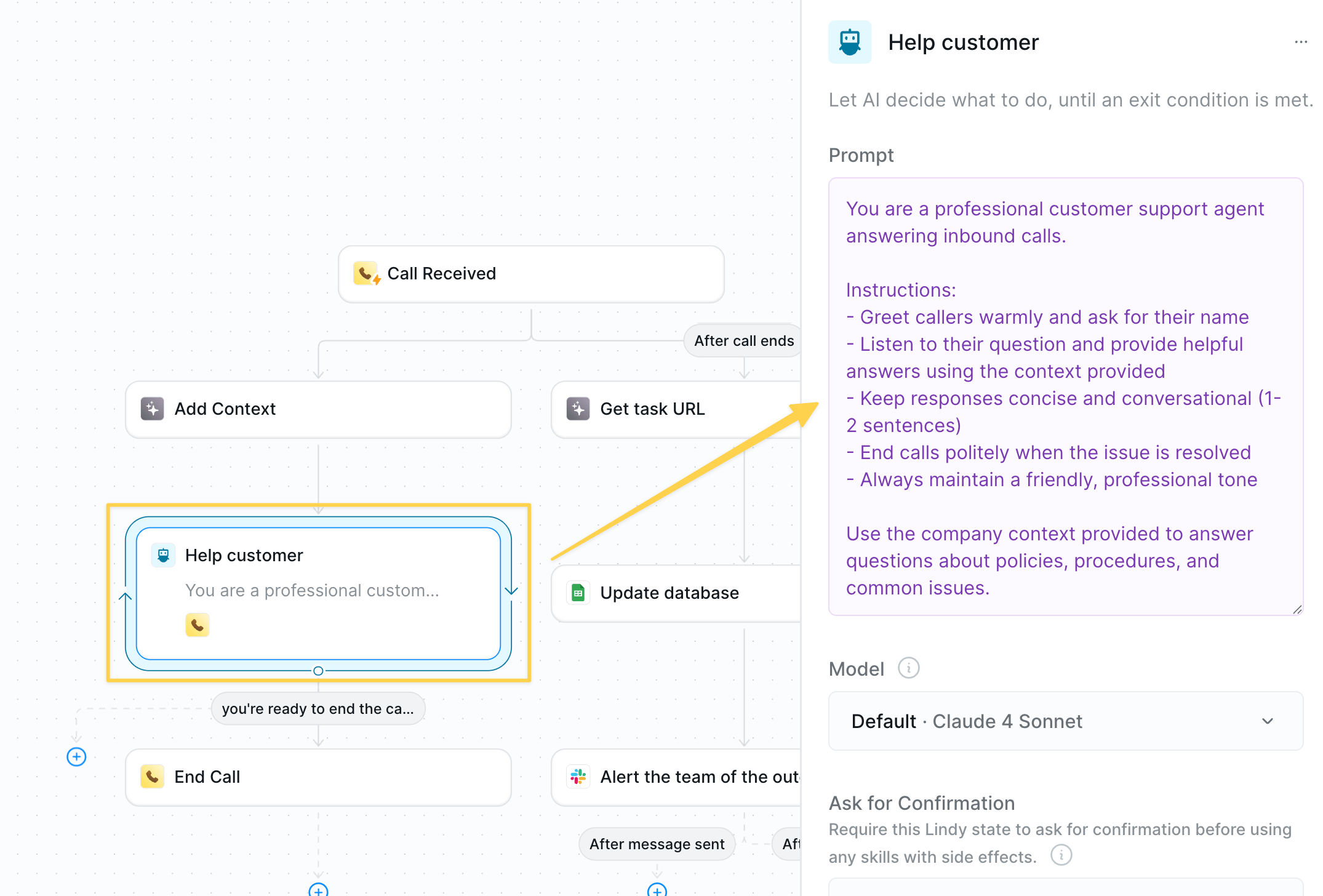 AI Agent prompt:
```
You are a professional customer support agent answering inbound calls.
Instructions:
- Greet callers warmly and ask for their name
- Listen to their question and provide helpful answers using the context provided
- Keep responses concise and conversational (1-2 sentences)
- End calls politely when the issue is resolved
- Always maintain a friendly, professional tone
Use the company context provided to answer questions about policies, procedures, and common issues.
```
Use balanced or fast Claude models for phone calls — they perform well for real-time conversations.
### Step 4: Document the Call
Track all phone interactions for quality assurance and follow-up.
AI Agent prompt:
```
You are a professional customer support agent answering inbound calls.
Instructions:
- Greet callers warmly and ask for their name
- Listen to their question and provide helpful answers using the context provided
- Keep responses concise and conversational (1-2 sentences)
- End calls politely when the issue is resolved
- Always maintain a friendly, professional tone
Use the company context provided to answer questions about policies, procedures, and common issues.
```
Use balanced or fast Claude models for phone calls — they perform well for real-time conversations.
### Step 4: Document the Call
Track all phone interactions for quality assurance and follow-up.
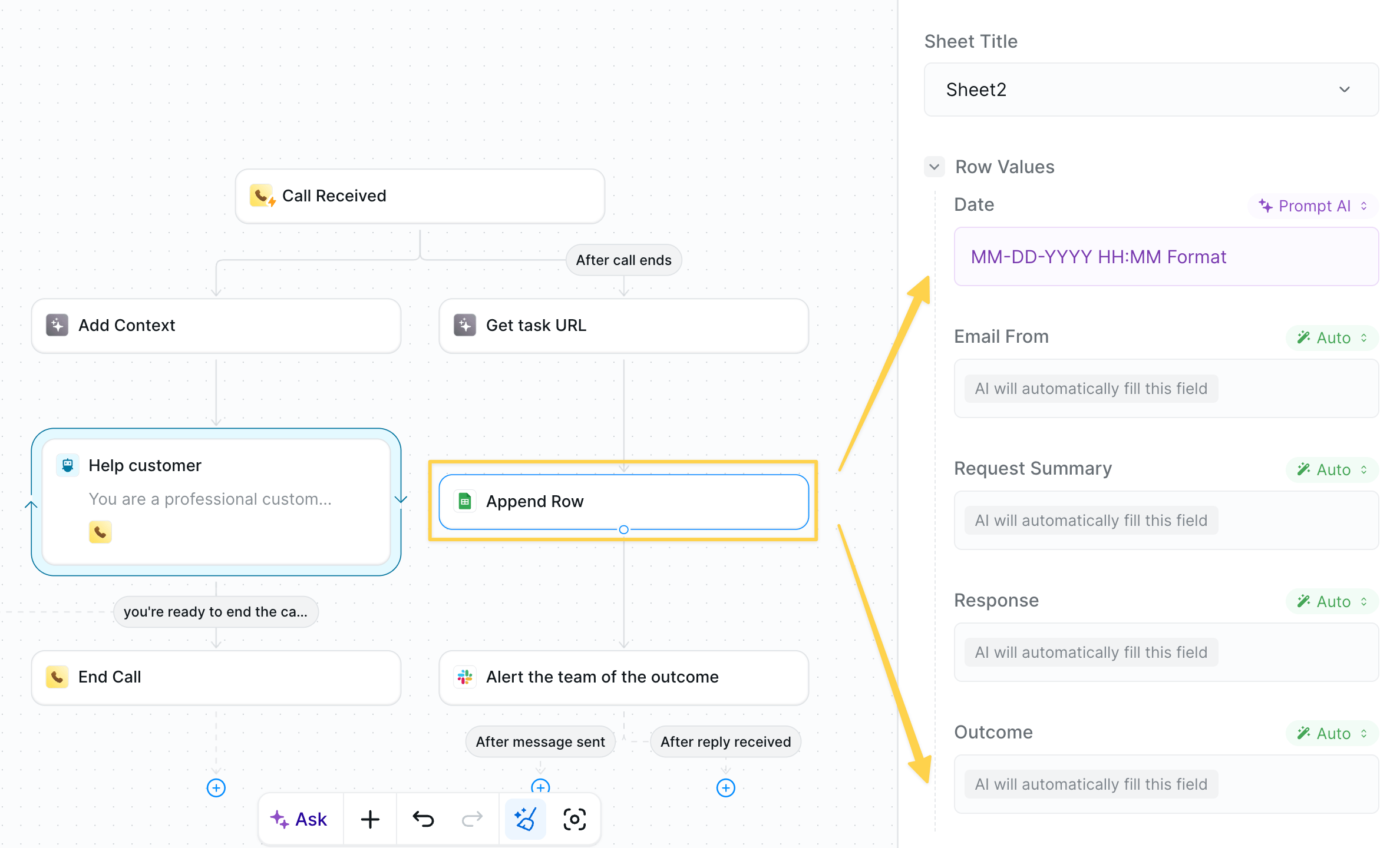 * `Get Task URL` → store reference link.
* `Google Sheets – Append Row` with name, question, answer, outcome, URL.
### Step 5: Team Alert
Notify your team about the call for immediate follow-up if needed.
* `Get Task URL` → store reference link.
* `Google Sheets – Append Row` with name, question, answer, outcome, URL.
### Step 5: Team Alert
Notify your team about the call for immediate follow-up if needed.
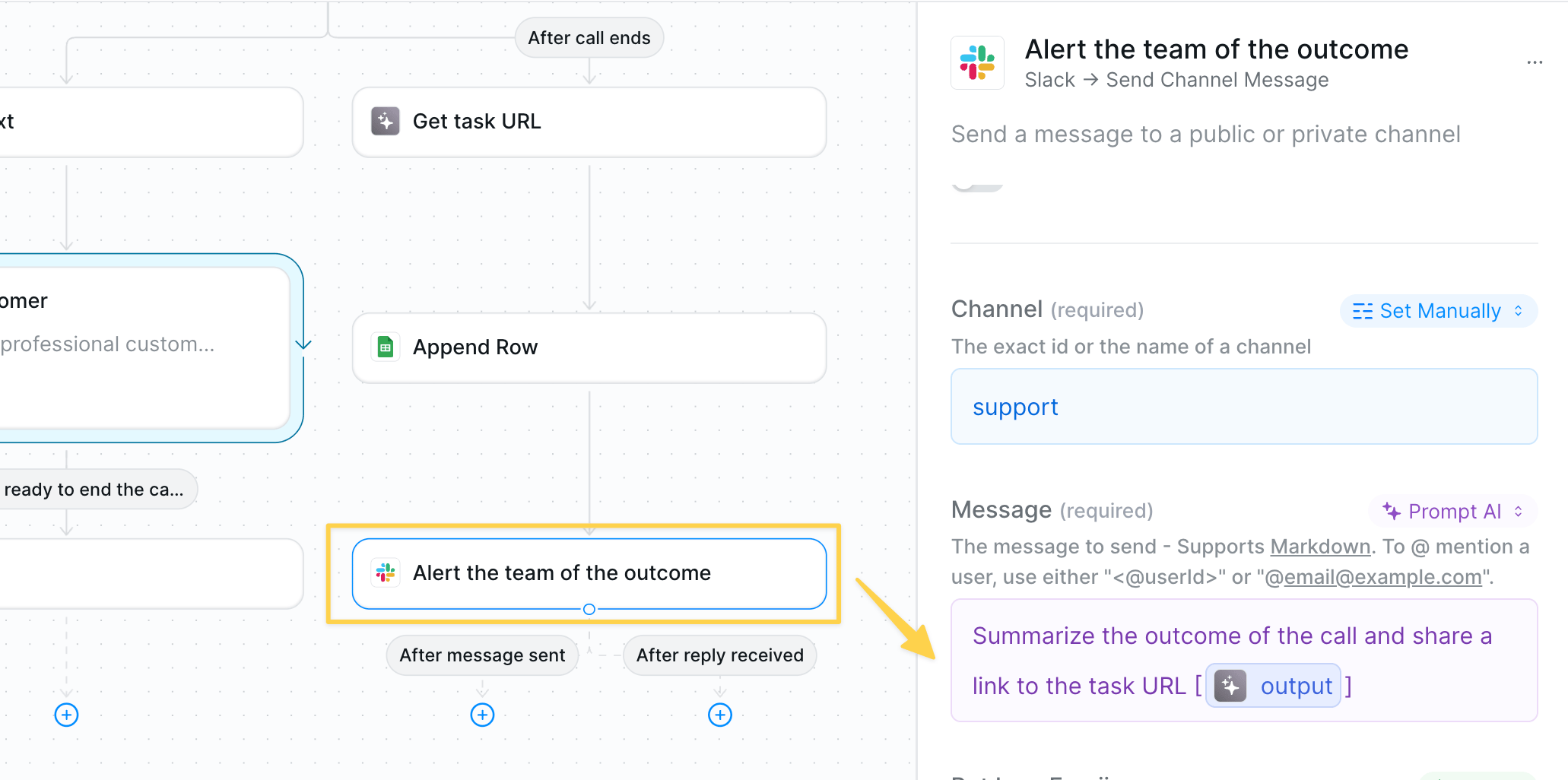 Send a Slack message summarizing the call with the task URL.
## Best Practices
Pre-load only essential info — too much context can slow down responses.
Callers prefer concise answers; avoid reading long policy text aloud.
Sheet + Slack combo creates an instant audit trail for QA.
Refresh your context monthly to keep answers current and accurate.
## Next Steps
Mirror the same logic in your inbox
Build advanced voice workflows
Generate insights from call data
Store call scripts and FAQs
Send a Slack message summarizing the call with the task URL.
## Best Practices
Pre-load only essential info — too much context can slow down responses.
Callers prefer concise answers; avoid reading long policy text aloud.
Sheet + Slack combo creates an instant audit trail for QA.
Refresh your context monthly to keep answers current and accurate.
## Next Steps
Mirror the same logic in your inbox
Build advanced voice workflows
Generate insights from call data
Store call scripts and FAQs