

Replies That Sound Like You
After Email Triage sorts your inbox, Lindy drafts replies for emails that need a response. From the day you sign up, it learns how you write, so those drafts sound like you and sharpen over time. Every draft lands in your drafts folder for you to review, edit, and send. Nothing goes out without your approval.How to Set It Up
Open Lindy, click your workspace name in the top-left, and choose Settings. In the left sidebar, click Emails, then scroll to Email drafting.
How It Works
Enable email drafting in your settings at chat.lindy.ai. Look for Email drafting in the settings panel. Once on, Lindy will:- Read incoming emails that need a response
- Draft a reply based on your drafting instructions and everything it’s learned about your style
- Save it as a draft in your email client
Drafting Instructions
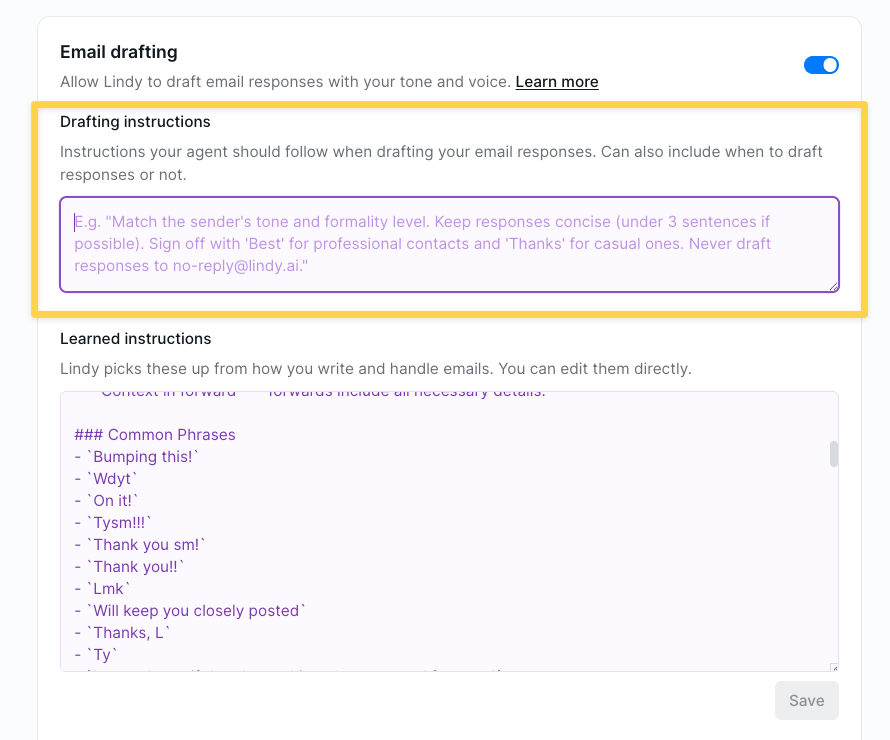
Lindy drafts from two sets of instructions, both in Settings → Emails → Email drafting. Your own Drafting instructions sit at the top, and the Learned instructions Lindy builds for you sit below.Drafting instructions
This is your own field. Paste or write your style rules and Lindy follows them. For example:Match the sender’s tone and formality level. Keep responses concise (under 3 sentences if possible). Sign off with ‘Best’ for professional contacts and ‘Thanks’ for casual ones. Never draft responses to no-reply emails.
- Tone: formal, casual, friendly, direct
- Length: short and punchy, or thorough and detailed
- Sign-offs: “Best,” “Thanks,” “Cheers,” your custom signature
- Rules: who to never reply to, what topics to escalate
Learned instructions
From the day you sign up, Lindy starts learning how you write. It saves what it notices as a memory in the Learned instructions field: your common phrases, sign-offs, and habits. It keeps updating that memory as you write and edit more emails, so the drafts get better and better over time. Open it any time to correct or add to what Lindy has learned, then click Save.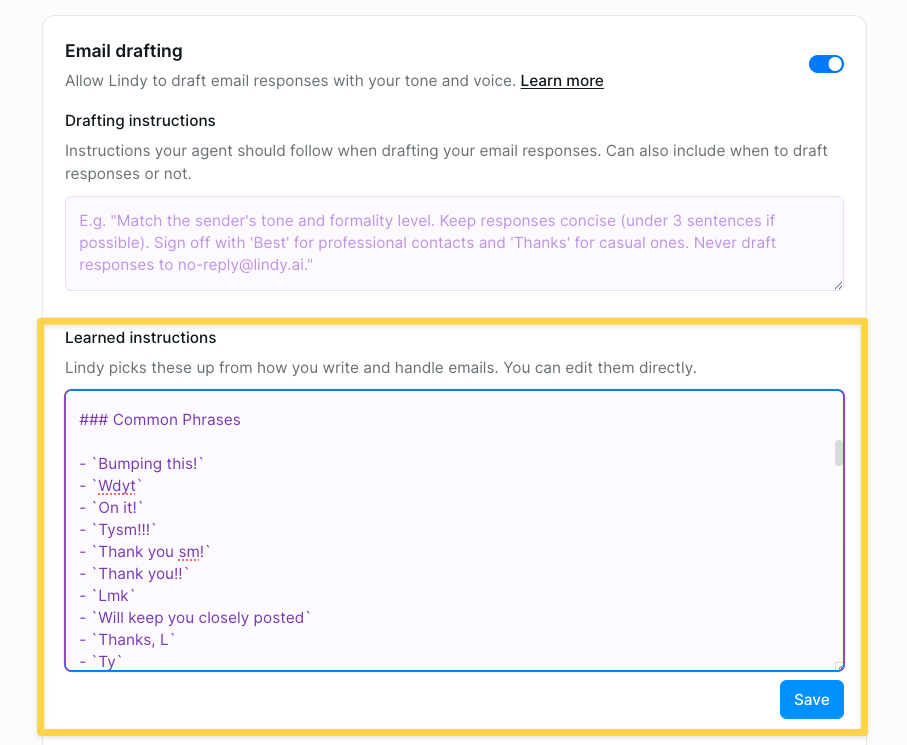
Signature
Customize what shows up at the bottom of every Lindy draft. Your signature is your standard sign-off, rendered above the Lindy line. Add plain text or markdown — paste in your Gmail signature, or write something new. Include Sent with Lindy adds a small “Sent with Lindy” tagline below your signature. It’s on by default — toggle it off in settings if you’d rather not include it.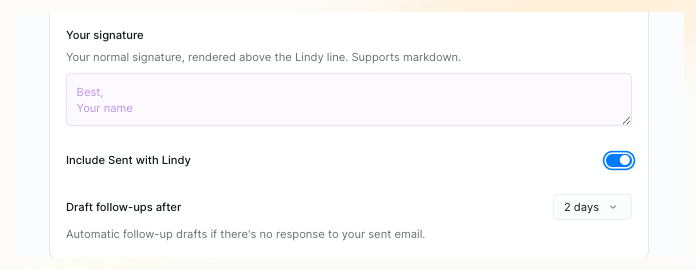
Automatic Follow-ups
Lindy tracks emails you’ve sent that haven’t gotten a reply. After a set number of days (default: 2 days), Lindy drafts a follow-up and saves it in your drafts for review. Adjust the timing in your settings. You always have the final say before anything sends.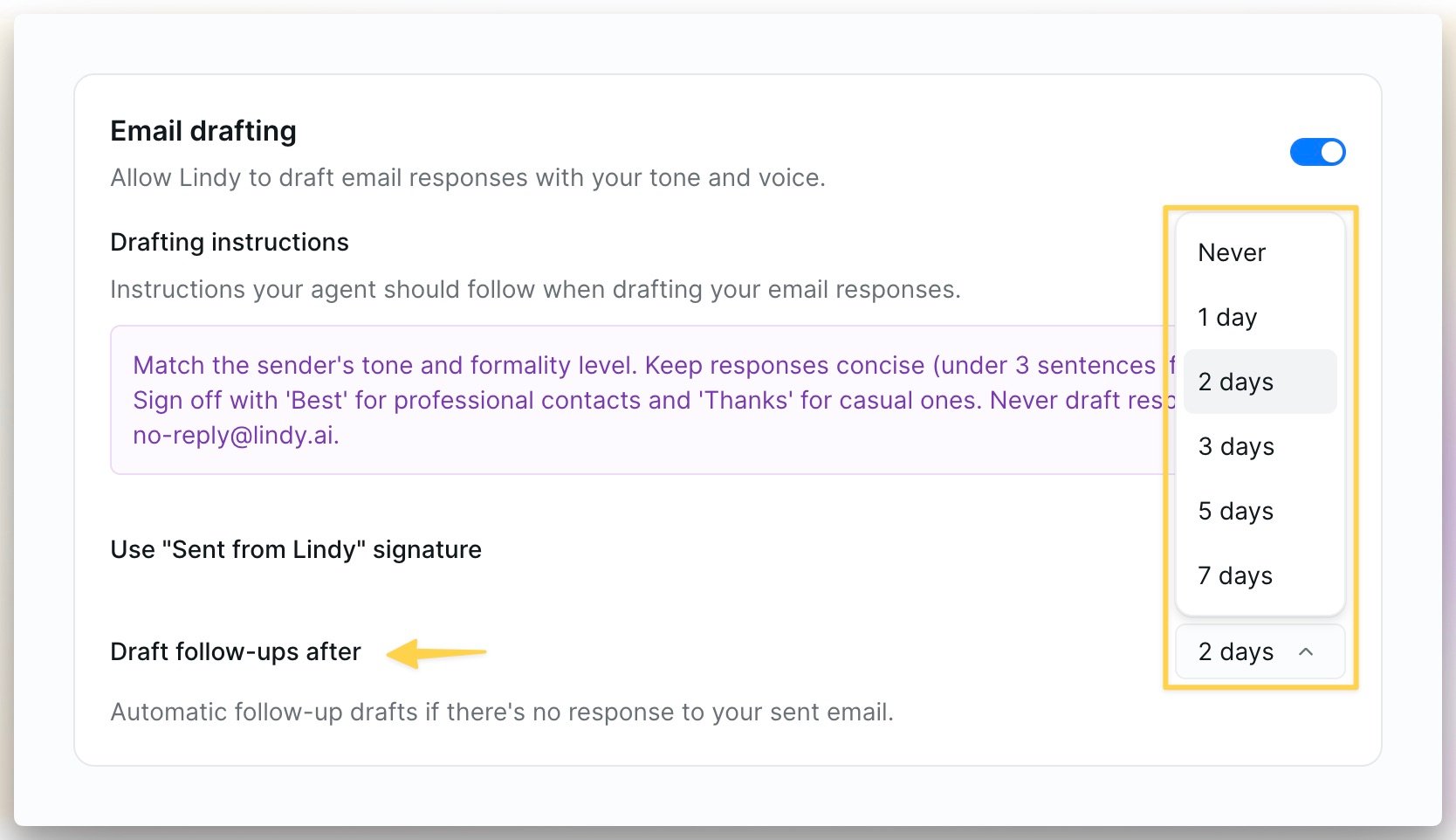
Next Steps
Email Triage
How Lindy organizes your inbox
Meeting Follow-ups
Automatic follow-ups after meetings